
CrystalDiskMark
Simple, free disk benchmark software for Windows. Measure SSD, HDD, and NVMe read/write speed in seconds.
What is CrystalDiskMark?
CrystalDiskMark is a lightweight disk benchmark tool that measures sequential and random read/write performance of your storage devices. Whether you have an NVMe SSD, SATA SSD, or traditional HDD, it gives you clear numbers in MB/s, GB/s, or IOPS—helping you verify advertised speeds, compare drives, or troubleshoot slow storage.
The program has been around since 2007 and is powered by Microsoft DiskSpd under the hood. It runs entirely on your PC: no cloud, no account, and no data sent to servers. You choose the drive, set the test size and number of runs, click All, and get results in one to a few minutes depending on your hardware.
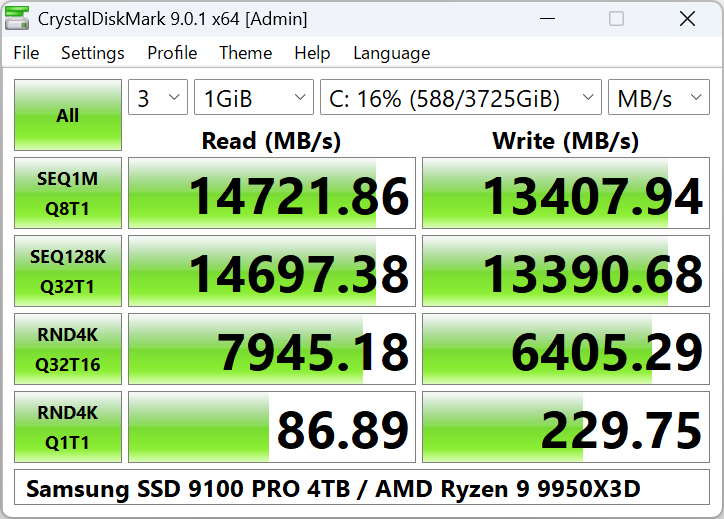
CrystalDiskMark 9 – Standard edition main window
Why use it?
- ✓ Free and trusted by millions worldwide
- ✓ Supports Windows XP through Windows 11 and Server
- ✓ Multiple test modes: Peak, Real World, Demo
- ✓ Results in MB/s, GB/s, IOPS, or latency (μs)
- ✓ Optional themes and many languages
Quick Start in 3 Steps
You can run your first benchmark in under a minute. For full options and tips, see the step-by-step guide.
Download & run
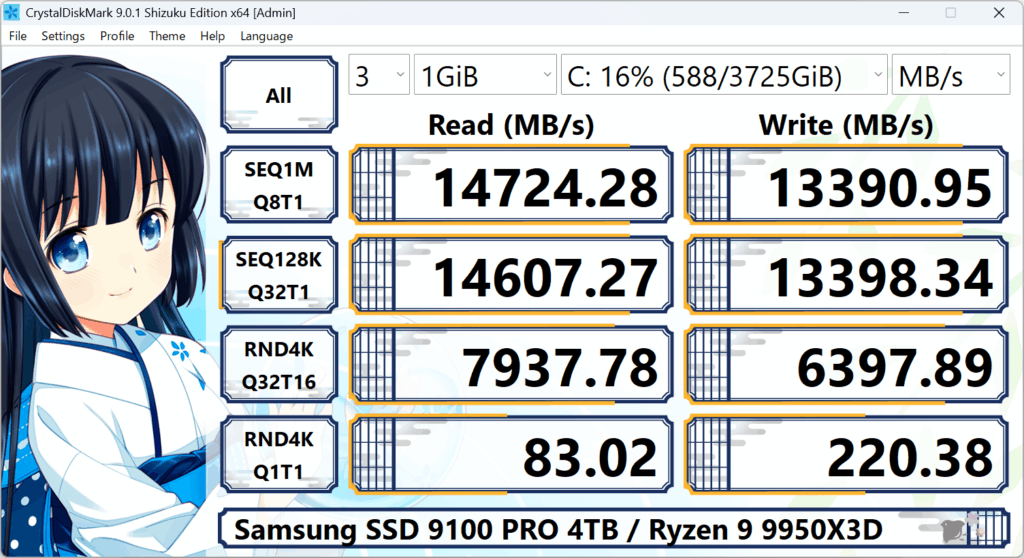
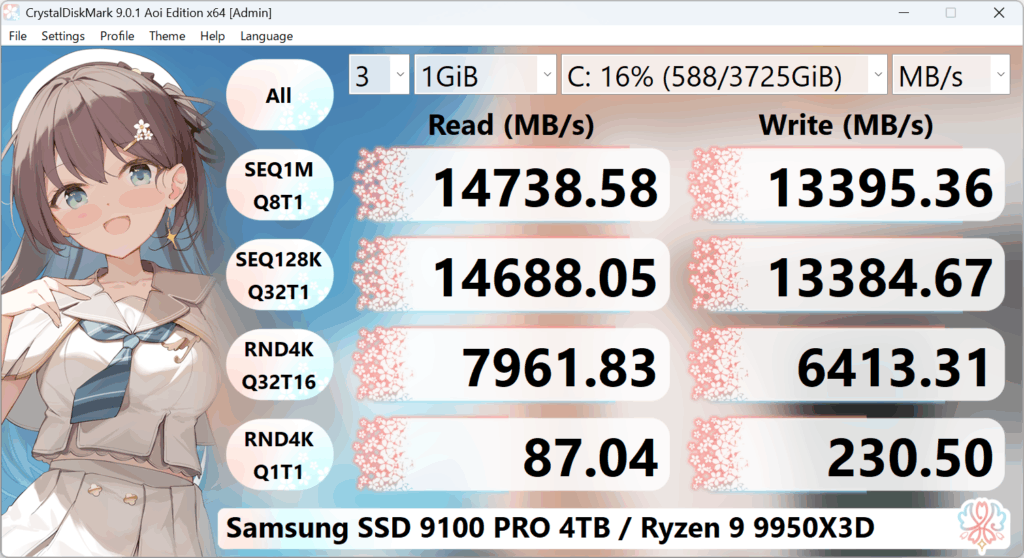
Get the Standard, Shizuku, or Aoi edition. No install needed if you use the portable ZIP—just extract and run.
Pick drive & size
Select the drive letter (e.g. C: or D:) and leave test size at 1 GiB for most drives. Use 64–128 MiB for slow USB or network drives.
Click All
Click the All button to run the full set of tests. Results appear in the grid when each test finishes.
Who Is CrystalDiskMark For?
CrystalDiskMark is used by home users, IT professionals, reviewers, and system builders. If you want to check whether your new SSD reaches advertised speeds, compare an old HDD with a new SSD, test a USB drive or network storage, or troubleshoot a slow disk, CrystalDiskMark gives you clear numbers in seconds. No account, no subscription—just download and run.
Verify NVMe or SSD speed for faster load times.
Benchmark drives for video/photo editing workflows.
Test local and network storage before/after changes.
Standard tool for storage benchmarks in reviews.
Verify new builds and compare drives before selling or deploying.
Check if an old PC’s disk is the bottleneck or document speed for support.
What Storage Can You Test?
CrystalDiskMark works with any drive that Windows shows as a drive letter. The benchmark runs the same tests regardless of the underlying technology; your results depend on the drive and connection.
- ✓NVMe SSDs (M.2, PCIe) – local and often the fastest.
- ✓SATA SSDs and SATA HDDs – internal or external over USB.
- ✓USB drives – flash drives and external enclosures (USB 2.0/3.0/3.1).
- ✓Network drives – mapped NAS or file shares (run as normal user, not Admin).
- ✓RAID volumes – software or hardware RAID presented as a single drive.
- ✓Other – SD cards (via reader), eMMC, and any block device Windows exposes.
Key Features
CrystalDiskMark packs everything you need into a simple window: choose your drive, set options, and run. No wizard, no account, no internet required.
Standard, Shizuku, and Aoi editions with multiple visual themes including dark mode.
Wide language support so you can use CrystalDiskMark in your preferred language.
Peak, Real World, and Demo modes for different benchmarking scenarios.
Measure sequential and random performance for read, write, and mixed workloads.
What Does CrystalDiskMark Measure?
The benchmark runs several test types. Understanding them helps you interpret results and compare drives.
| Test type | What it means |
|---|---|
| Sequential read/write | Large blocks in order (e.g. copying big files). Often the “headline” speed (MB/s) on SSDs. |
| Random read/write (4K, etc.) | Small random blocks. Reflects OS and app responsiveness, databases, many small files. |
| Mix (read+write) | Combined read and write workload. Closer to real multitasking. |
Results can be displayed in MB/s, GB/s, IOPS, or average latency (μs). See the guide for step-by-step instructions.
Peak vs Real World: Which Numbers Matter?
CrystalDiskMark offers different test profiles. The two you’ll see most are Peak and Real World. Both are valid—they answer different questions.
Peak
Uses settings that maximize throughput (e.g. deeper queues, larger blocks). You get the highest MB/s the drive can deliver under ideal conditions. Use Peak when you want to compare your drive to manufacturer specs or to other drives in reviews.
Best for: “Is my drive performing at spec?” and headline comparisons.
Real World
Uses a workload that mimics typical desktop use (mixed read/write, more realistic queue depth). Numbers are often lower than Peak but closer to what you’ll see in everyday use.
Best for: “How fast will it feel in real use?” and realistic expectations.
You can switch between Peak and Real World (and other profiles) in the program. For a full walkthrough, see the Guide.
Rough Speed Ranges (Reference Only)
Actual CrystalDiskMark results depend on the drive, controller, and test settings. These are approximate sequential ranges so you know what to expect.
- NVMe PCIe 4.0 SSD: Often 5,000–7,000+ MB/s read, 4,000–6,000+ MB/s write (high-end). PCIe 3.0 NVMe: roughly 2,500–3,500 MB/s.
- SATA SSD: Typically 500–560 MB/s read/write (SATA limit).
- HDD (7200 rpm): Often 150–200 MB/s sequential; random 4K much lower.
- USB 3.0 flash drive: Varies widely; often 50–200 MB/s read, 20–100 MB/s write.
If your numbers are far below these, check FAQ and user experiences for troubleshooting.
| Device type | Typical sequential read | Typical sequential write |
|---|---|---|
| NVMe PCIe 4.0 | 5,000–7,000+ MB/s | 4,000–6,000+ MB/s |
| NVMe PCIe 3.0 | 2,500–3,500 MB/s | 2,000–3,000 MB/s |
| SATA SSD | 500–560 MB/s | 500–560 MB/s |
| HDD 7200 rpm | 150–200 MB/s | 150–200 MB/s |
When to Run a Benchmark
CrystalDiskMark is useful in many situations. Here are the most common reasons people run a disk benchmark.
After buying a new drive
Verify that your new SSD or NVMe reaches the advertised speeds. Manufacturers often list sequential read/write in MB/s; CrystalDiskMark gives you real numbers in minutes.
Before and after upgrades
Compare an old HDD or SATA SSD with a new NVMe drive. Run the same test size and runs on both to see the real-world improvement.
Troubleshooting slow storage
If Windows or apps feel slow, a benchmark can show whether the disk is the bottleneck. Low random 4K results often explain sluggish system response.
Documentation and RMA
Save results as image or text for warranty claims or support tickets. Proof of below-spec performance can help with replacements.
Choose Your Edition
Standard
 Shizuku
 Aoi
Aoi
Test Size: What to Choose
The test size is how much data CrystalDiskMark reads and writes during each run. The program needs at least that much free space on the drive you select.
| Test size | When to use it |
|---|---|
| 64 MiB – 128 MiB | Slow storage (USB 2.0, old HDDs, network drives). Keeps the test short. |
| 1 GiB (default) | Most SSDs and HDDs. Good balance of speed and consistency. |
| 2 GiB – 8 GiB | High-end NVMe; can show sustained performance and cache behavior. |
More options (up to 64 GiB) are available in the program. See FAQ – Test size and the Guide.
Related Software
The same developer offers other free utilities that work well with CrystalDiskMark.
CrystalDiskInfo
Shows drive health (SMART), temperature, and model. Use it to check if a drive is healthy before or after benchmarking.
—CrystalMark Retro
Benchmark tool for older systems. Useful if you need to test storage on legacy Windows.
—CrystalMark 3D
GPU and system benchmark. Complements storage tests when evaluating a full PC.
—Terms You Might See
When reading benchmark results or reviews, these terms appear often.
- MB/s, GB/s
- Megabytes or gigabytes per second; how much data the drive reads or writes per second.
- IOPS
- Input/output operations per second; important for random workloads and responsiveness.
- Sequential
- Reading or writing large blocks in order; typical for big file copies and installers.
- Random 4K
- Small (4 KiB) random reads/writes; reflects OS and app behavior and “snappiness.”
- Peak / Real World
- Peak = maximum throughput settings; Real World = more typical workload profile.
- Q8T1, Q32T1
- Queue depth and threads (e.g. 8 queues 1 thread). Higher queue can show higher speeds.
System Requirements
CrystalDiskMark runs on a wide range of Windows systems. You need enough free space on the drive you test (at least as much as the test size you select).
Supported Windows
- Windows 11 / 10 / 8.1 / 8 / 7
- Windows Server 2022, 2019, 2016, 2012 R2, and older
- Windows XP (older editions)
Architecture
- x86 (32-bit) and x64 (64-bit)
- ARM64 (e.g. Windows on ARM)
Tips for Best Results
Small changes can make your benchmark more consistent and meaningful.
- • Close heavy apps (browsers with many tabs, downloads, backup software) so the drive isn’t busy during the test.
- • For local drives, run as Administrator if the test fails with “access denied”; for network drives, run as a normal user so they appear in the list.
- • Use the same test size and number of runs when comparing two drives—e.g. 1 GiB, 5 runs for both.
- • Don’t run the benchmark constantly on SSDs; occasional runs are fine, but heavy repeated use can add wear.
More details: Guide – Tips and best practices · FAQ.
Explore More
Guides, troubleshooting, and real user stories to get the most out of CrystalDiskMark.
How to Use
Step-by-step: select drive, test size, run benchmark. Test profiles (Peak, Real World), units, and tips.
Read the guide →FAQ & Troubleshooting
Network drive not showing, benchmark failed, slow results, admin rights, saving results, and more.
View FAQ →User Experiences
Real stories: NVMe checks, network drives, RMA documentation, before/after upgrades, and quick fixes.
Read experiences →Common Questions
Is CrystalDiskMark free?
Why don’t I see my network drive?
The benchmark failed. What should I do?
How long does a full benchmark take?
Is it safe to run on my SSD?
Ready to benchmark your drive?
Download CrystalDiskMark for free. No registration required. Supports Windows 11, 10, 8, 7, and Server.
Get CrystalDiskMark